Shapes Pop-Up Menu
A pop-up menu is available for shapes that lets you export shapes in the .ORSObject file format, execute a macro, create and extract a structured grid, as well as modify a region of interest.
| Description | |
|---|---|
| Export as ORSObject | Saves the selected shape(s) in the ORS Object File (*.ORSObject extension). See Exporting Objects. |
|
Execute Macro |
Provides a shortcut for selecting macros that can be executed for the selected shape. |
|
Create a Structured Grid** |
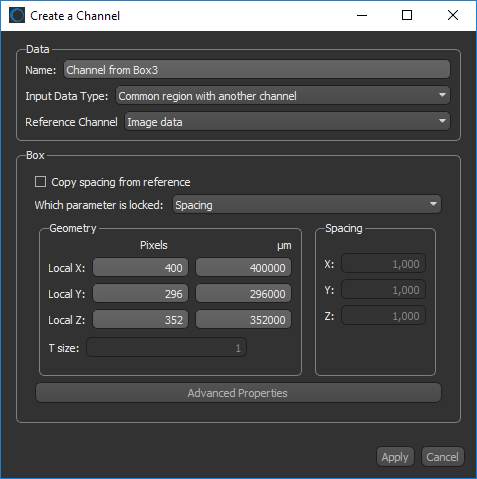
Creates a dataset (structured grid) from the subvolume defined by a box shape. The dataset type created can be a channel, region of interest, or multi-ROI, and the input data and geometry can be selected in the appropriate dialog — Create a Channel, Create an ROI, or Create a Multi-ROI.
|
|
Add to ROI* |
Adds all voxels contained in the subvolume defined by the current shape to a selected region of interest. You should note that only intersecting voxels will be added to the region of interest. |
|
Extract Structured Grid** |
Extracts a dataset (structured grid) from the subvolume defined by the box shape and the intersecting data values of a selected object. |
|
Remove from ROI* |
Removes all intersecting voxels of the subvolume defined by the shape from the selected region of interest. |
* Not available for planes.
** Only available for boxes.

 LEARNING LINKS

